
Pro Tip Apply in Ableton Live
Pro Tip Apply lets LIA suggest a move inside Ableton Live and, on your request, perform the reachable action for you: insert a device or set a parameter. LIA acts through LIA Bridge only when you ask, so you see the suggestion first and stay in control of every change.
Last updated:
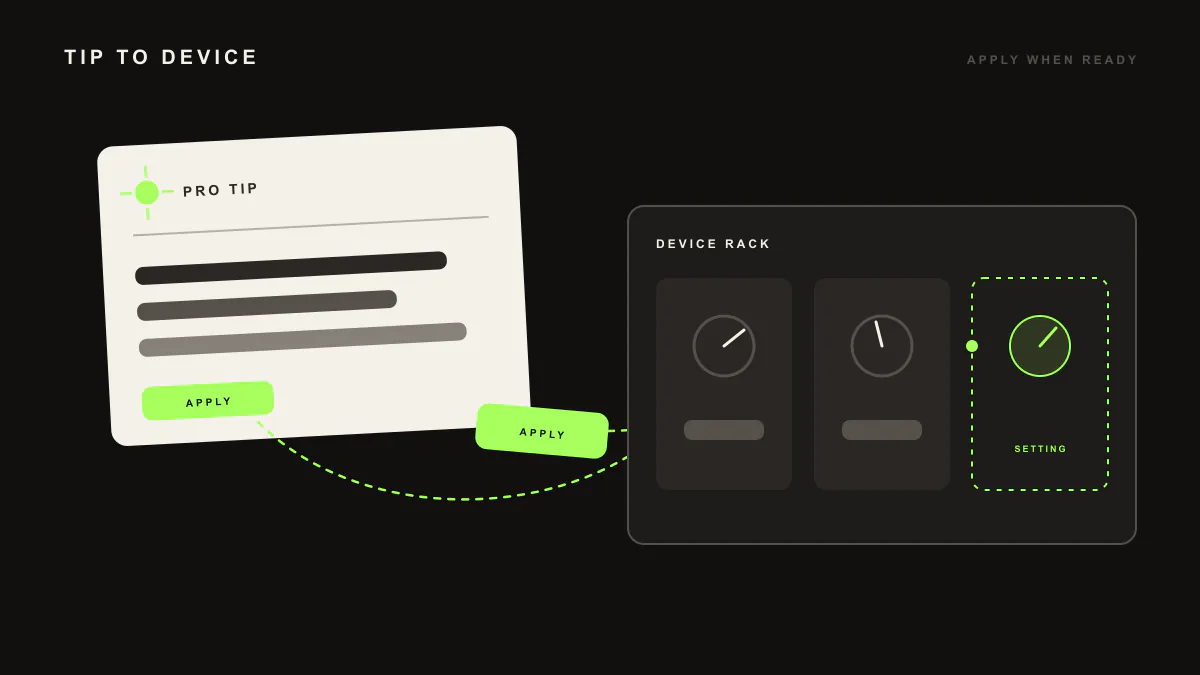
Pro Tip Apply is how a suggestion becomes an action, on your terms. LIA proposes a reachable move inside your Ableton Live session and, when you ask, performs it for you through LIA Bridge, the small helper app that connects LIA to Ableton Live. You see the suggestion first, decide, and LIA acts only after you say yes.
How it works
- Open LIA from your browser, on desktop or phone, with your Ableton Live session open and LIA Bridge connected.
- Ask LIA for help with a move, or LIA suggests one while you work.
- LIA lists the suggestion in plain language, such as inserting a device or setting a parameter.
- You request the move, and only then does LIA perform the reachable action inside your session.
- Check the result on the track and keep the conversation going, applying more moves one at a time.
Example prompts
add a reverb to the lead and set a longer decay
What you get. LIA suggests inserting a reverb device on the lead track and setting the decay parameter, then, on your go-ahead, performs those reachable moves through LIA Bridge. The device appears on the track with the parameter set, and you keep tweaking from there.
apply your suggestion to roll off the low end on the pad
What you get. LIA inserts the suggested device on the pad track and sets the parameter it proposed, once you confirm. The change lands inside your open Ableton Live session, and you can undo or refine it like any other move you made yourself.
Requirements. A Free trial account works to get started and includes 10 total trial productions. LIA Bridge is required for in-session actions inside Ableton Live, so install it on macOS or Windows and keep it connected while you work.
Known limitation
Pro Tip Apply performs reachable device and parameter moves, not open-ended edits. It does not rearrange or resize clips in the Arrangement view, and LIA does not export or bounce audio of any kind. Pro Tip Apply works inside Ableton Live through LIA Bridge today, and support for other DAWs is on the waitlist.
Where to go next
- Getting started: connect LIA Bridge and create your first editable idea.
- Mixing suggestions: how LIA suggests mix moves you choose to apply.
- Command catalog: the full range of requests LIA understands inside Ableton Live.
- Facts: what LIA does and does not do, in plain terms.
- Pricing: compare Free, Starter, Pro, Studio, Studio Max and Founder.
Frequently asked questions
What does Pro Tip Apply do?
LIA suggests a move, such as inserting a device or setting a parameter, and on your request performs that reachable action inside your Ableton Live session through LIA Bridge. You see the suggestion first and choose whether to apply it, so nothing changes until you ask.
Does LIA change my project without asking?
No. Pro Tip Apply only acts when you request it. LIA lists the suggestion, and the reachable device or parameter move happens after you say yes. You stay in control of every change to your session.
What kinds of moves can Pro Tip Apply perform?
Reachable device and parameter moves: inserting a device by preset and setting a parameter. It works within the session actions LIA can take through LIA Bridge, so it applies concrete, in-reach changes rather than open-ended edits.
Do I need LIA Bridge for Pro Tip Apply?
Yes. LIA Bridge, the small helper app that connects LIA to Ableton Live, is required so LIA can perform the move inside your open session. Install it on macOS or Windows and keep it connected while you work.
Which DAWs support Pro Tip Apply?
Pro Tip Apply works inside Ableton Live today through LIA Bridge on macOS and Windows. Support for other DAWs is on the waitlist, so you can register interest and we will let you know as it becomes available.