
How to Set Up LIA Bridge with Ableton Live 12
Getting LIA up and running with Ableton Live 12 takes about five minutes. This guide walks you through every step, from creating your account to producing your first AI assisted beat. No technical knowledge required.
What You'll Need
- A Mac or Windows PC (LIA Bridge supports Ableton Live 12+ on macOS and Windows)
- Ableton Live 12 (any edition: Intro, Standard, or Suite; Suite recommended for the full sound palette)
- An internet connection
That's it. Let's get started.
Step 1: Create Your Free LIA Account
Head to the LIA website and sign up for a free account. You'll need an email address and a password. The free tier gives you access to LIA's core features, which is everything you need to follow along with this tutorial.
Once you've signed up, you'll receive a confirmation email. Click the link to verify your account, and you're ready for the next step.
Step 2: Download LIA Bridge for Mac
After logging in, navigate to the download section and grab LIA Bridge for Mac. The download is lightweight, so it should only take a moment even on slower connections.
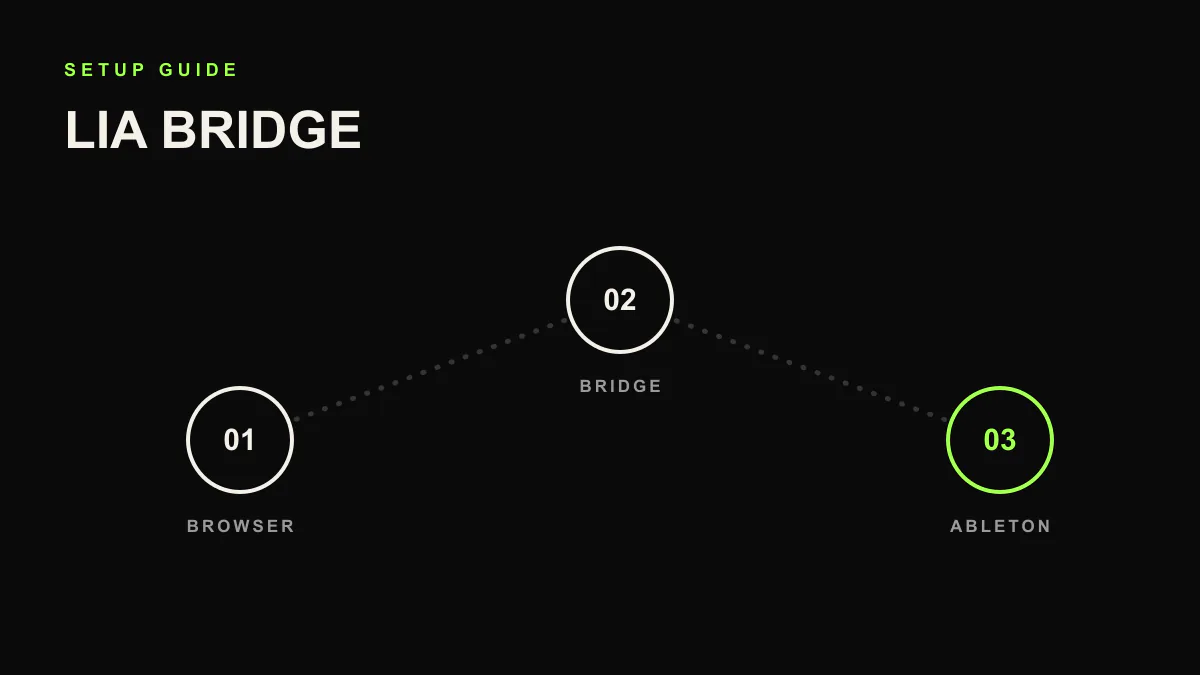
LIA Bridge is the companion app that connects LIA's AI to your Ableton Live session. Think of it as the translator between your natural language requests and Ableton's controls.
Step 3: Install and Open LIA Bridge
Open the downloaded file and drag LIA Bridge to your Applications folder, just like any other Mac app. Then open it from your Applications folder or Launchpad.
The first time you launch LIA Bridge, macOS might ask you to confirm that you want to open an app from an identified developer. Click "Open" to proceed.
LIA Bridge will appear in your menu bar and show a small status indicator. When it's running and ready to connect, you'll see a green dot. Keep LIA Bridge running whenever you want to use LIA with Ableton.
Step 4: Open Ableton Live 12
Launch Ableton Live 12 as you normally would. You can open an existing project or create a new one. For this tutorial, starting with an empty Live Set is a good idea so you can see exactly what LIA creates.
Step 5: Connect LIA Bridge in Ableton's Preferences
This is the key step that links everything together. In Ableton Live:
- Go to Preferences (Cmd + Comma on Mac)
- Click the Link, Tempo & MIDI tab
- In the Control Surface dropdown, select LIA Bridge
Once selected, Ableton Live and LIA Bridge will establish a connection. You should see the status indicator in LIA Bridge change to confirm the connection is active.
That's the entire setup. LIA Bridge now has access to your Ableton Live session and can create tracks, load instruments, write MIDI, adjust your mix, and more.
Step 6: Start Chatting with LIA
Now comes the fun part. Open the LIA chat interface (either through the LIA Bridge app or the web interface) and start telling LIA what you want to make. Here are some things you can try right away:
"Create a simple drum beat at 90 BPM." LIA will add a drum track, load a drum kit, and create a basic pattern. You'll see the track appear in Ableton's arrangement view with MIDI notes already in place.
"Add a bass line in the key of G minor." LIA will create a new track, load a bass instrument, and write a bass pattern that fits the key you specified.
"Make the drums more complex with some hi hat variations." LIA will modify the existing drum pattern, adding hi hat rhythms and fills to give it more groove.
"Add a warm synth pad playing long chords." LIA will find an appropriate pad sound, create a new track, and write chord voicings that complement what's already in your session.
Everything LIA creates is fully editable. You can click into any MIDI clip and move notes around. You can swap instruments. You can adjust the mix. LIA accelerates the process, but you keep total control.
Troubleshooting Common Issues
LIA Bridge doesn't appear in Ableton's Control Surface list
Make sure LIA Bridge is running before you open Ableton Live's preferences. If you installed LIA Bridge while Ableton was already open, try closing and reopening Ableton's preferences panel. In some cases, restarting Ableton Live resolves this.
The connection drops intermittently
Check that your internet connection is stable. LIA Bridge needs a consistent connection to communicate with LIA's AI. If you're on Wi-Fi, try moving closer to your organiser or switching to a wired connection for more reliability.
LIA creates a track but no sound plays
Check your audio output settings in Ableton Live's Preferences under the Audio tab. Make sure your audio interface is selected and that the main output is routed correctly. Also verify that the track LIA created isn't muted. Sometimes a quick glance at the mixer solves the mystery.
Ableton shows a "MIDI Remote Script" error
This usually means there's a version mismatch. Make sure you're running the latest version of both LIA Bridge and Ableton Live 12. Check the LIA website for any updates to the Bridge app.
LIA seems slow to respond
Response times depend on the complexity of your request and your internet connection. Simple commands like "add a track" are nearly instant. More complex requests like "create a full drum pattern with fills every 8 bars" take a moment longer because LIA is making more decisions and writing more data. This is normal.
Your First Beat: A Quick Walkthrough
Here's a simple sequence to get you from empty project to a basic beat in under two minutes:
- Open a new, empty Live Set in Ableton
- Tell LIA: "Set the tempo to 140 BPM"
- Tell LIA: "Create a trap drum pattern with kicks, snares, and hi hats"
- Tell LIA: "Add a deep 808 bass in D minor"
- Tell LIA: "Add a dark ambient pad on top"
- Hit play and listen to what you've built
From here, you can keep refining. Ask LIA to change the pattern, try different sounds, adjust the mix levels, or add more elements. Every change executes directly in your Ableton Live session.
What's Next
Now that you're set up, the best way to learn LIA is to use it. Start with simple requests and gradually get more specific as you learn what LIA can do. Try describing genres, moods, and specific musical elements. Experiment with mixing commands and arrangement changes.
The more you use LIA, the more natural it feels. Before long, chatting with your DAW will become a regular part of your workflow. Welcome aboard.